Google Groups The Guarded Entry Method
Allow trusted external partners to email an internal Google Group without opening it to the entire internet — using Content Compliance rules.
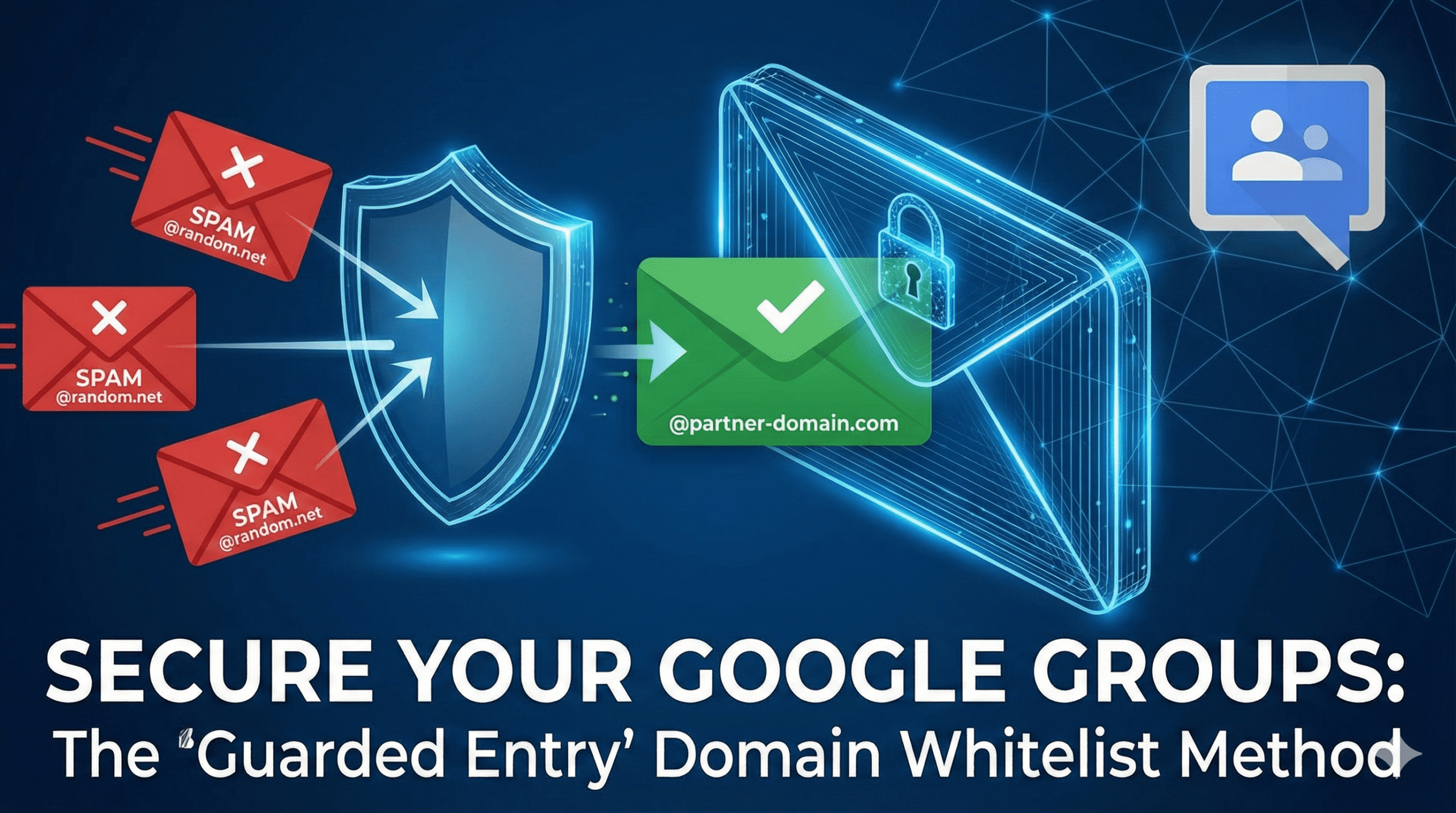
Managing distribution lists in Google Workspace is usually straightforward: you either make a group private (internal only) or public (anyone on the internet can post).
But what if you need a middle ground?
We faced a common challenge: an internal project group needed to receive emails from a specific external partner, but we did not want to set the group to public and open the door to spam or unauthorized senders.
Since Google Groups does not have a simple "Allow specific external domains" checkbox, we implemented a workaround using Content Compliance rules. Here is how we achieved a Guarded Entry setup that allows specific partners in while keeping everyone else out.
The Challenge
1. Standard setting: If you set "Who can post" to Organization members, external partners get bounced.
2. Public setting: If you set it to Anyone on the web, the group can get flooded with spam.
Neither option fits a project that needs selective external collaboration.
The Solution: Open Door, Strong Bouncer
We used a two-step process:
1. Open the group — technically allow internet posting at the group level.
2. Add a guard — use a Compliance rule to block everyone except domains we explicitly trust.
Step 1: Adjust Group Settings
Navigate to Google Groups → Group Settings.
- Under Who can post, select Anyone on the web.
This sounds risky, but Step 2 locks it down immediately.
Step 2: Create a Content Compliance Rule
Go to Google Admin Console → Apps → Google Workspace → Gmail → Compliance.
Create a rule that filters mail sent to your group address.
The logic:
- Target: Emails sent TO [your-group]@yourcompany.com
- Condition: If the sender does NOT match your whitelist
- Action: Reject the message
Step 3: Define the Whitelist with Regex
In the Advanced content match section, use a regular expression for allowed sender domains:
```
(@partner-domain\.com|@our-company\.co\.jp)
```
This tells the system: if the sender is not from partner-domain.com and not from our-company.co.jp, block the message.
Adjust the pattern for your partners. You can add more domains with the | (OR) operator:
```
(@partner-a\.com|@partner-b\.com|@our-company\.co\.jp)
```
Step 4: Test Before Rollout
1. Send a test email from an internal account — should be delivered.
2. Send from a whitelisted partner domain — should be delivered.
3. Send from a personal Gmail or unknown domain — should be rejected.
Document the rule and whitelist for your admin team so future partners can be onboarded quickly.
The Result
This setup gives you the best of both worlds:
- Security: Random external senders and spammers are automatically rejected.
- Collaboration: Trusted partners can email the group like internal employees.
- Flexibility: Add new partners by updating the regex whitelist.
When to Use This Pattern
Use Guarded Entry when:
- A group must stay "internal-first" but needs one or two external senders
- You cannot use a shared mailbox or forwarding alias instead
- Your organization already manages Gmail compliance rules centrally
Conclusion
If you are a Google Workspace admin struggling to manage external collaboration without compromising security, the Guarded Entry method is a practical middle path between fully private and fully public groups.